Skip to content

Runs entirely in your browser. Nothing you paste leaves this page.

Free / No sign-up

Image compressor: WebP, AVIF, JPEG, PNG.

Shrink, resize and convert photos and screenshots with your browser's own encoders. Compare before and after with a slider, process a batch, and download one file or a .zip. Nothing is uploaded.

Preparing the sample photo…

Output format

Output format

    Drag the slider over the photo to compare. Encoding uses this browser's built-in encoders, so files never leave the tab; this browser cannot encode AVIF, so that option is hidden. Metadata such as EXIF and GPS is removed.

    How to use it.

    1. 01

      Drop images onto the viewer or press Add images. A sample photo is loaded so you can try the settings first.

    2. 02

      Choose the output format, quality and longest side. Every image is re-encoded as you change a setting, and the panel shows the same photo in every format.

    3. 03

      Drag the slider across the photo to compare, then download a single file or all of them as a .zip.

    What it does.

    Everything this tool handles, all of it inside your browser tab.

    • Converts to WebP, JPEG and PNG, plus AVIF where the browser can encode it
    • Quality slider and longest-side resizing from original size down to 640 px
    • Before and after comparison slider on the actual output
    • The same image encoded in every supported format, with real sizes
    • Batch processing of up to 30 images with per-file savings
    • Download one file or all of them as a .zip
    • Transparent areas painted white for JPEG instead of turning black
    • Strips EXIF and GPS metadata for privacy
    • Uses the browser's own encoders; nothing is uploaded

    Worked examples.

    • PNG screenshot export of a photo

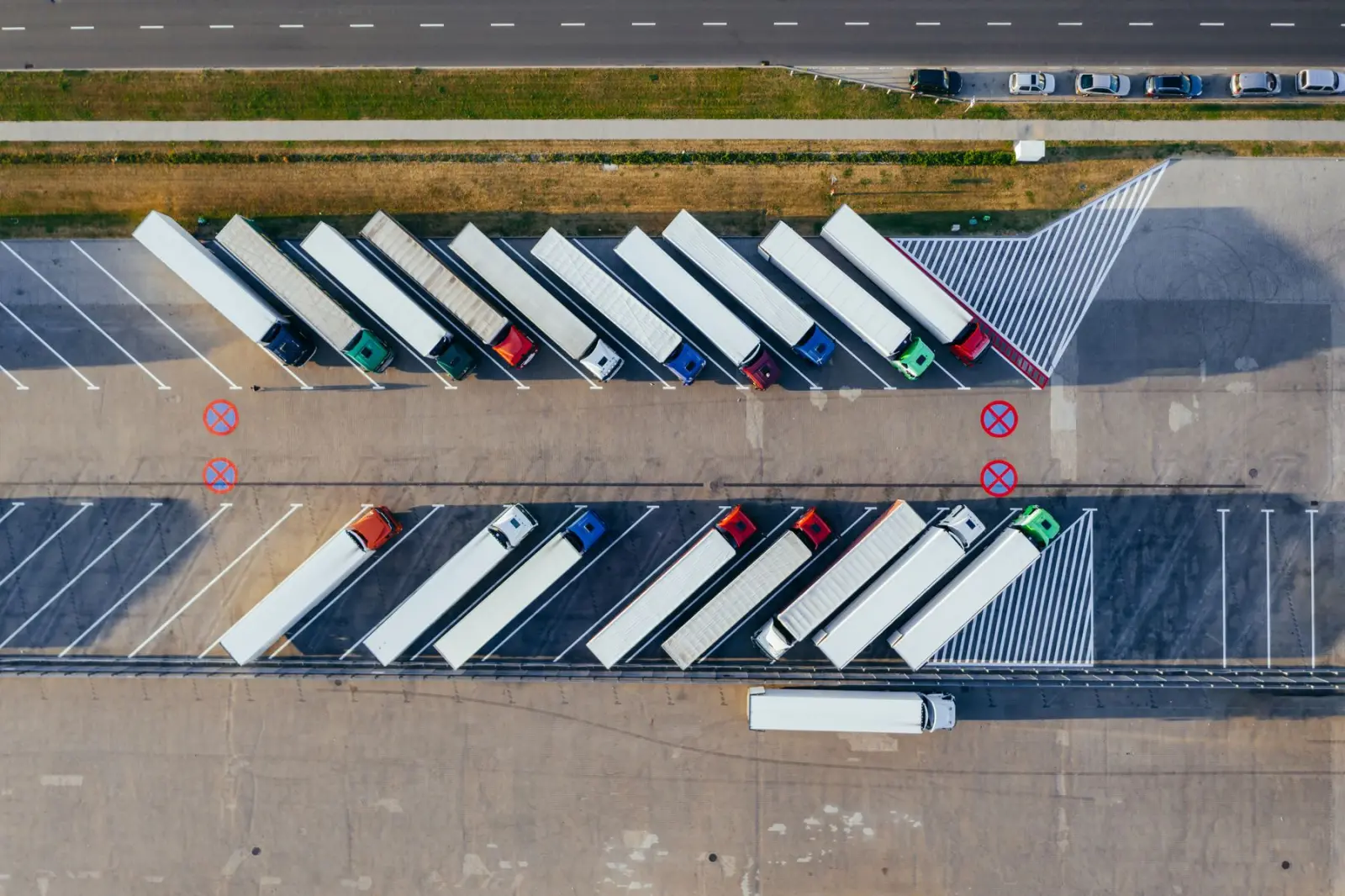
      sample-photo.png   1600×1066   2.59 MB
      WebP, quality 72   1600×1066   120 KB   −95%

      Photos saved as PNG are the most common image-weight problem on websites. Converting to lossy WebP keeps it visually identical at normal size.

    • Phone photo for a blog post

      IMG_2041.jpg   4032×3024
      WebP, quality 75, longest side 1600
      → 1600×1200, about 16% of the original pixels

      Resizing removes about 84% of the pixels before quality even comes into play. The exact size depends on detail in the photo; busy scenes compress less than plain ones.

    • Logo with transparency

      logo.png (transparent)   →   WebP quality 90   keeps alpha
                               →   JPEG              background turns white

      JPEG has no transparency, so the tool paints transparent areas white. Use WebP or PNG for logos and icons.

    • Responsive markup for the result

      <img src="team-800.webp"
           srcset="team-800.webp 800w, team-1600.webp 1600w"
           sizes="(min-width: 900px) 800px, 100vw"
           width="1600" height="1066" alt="The team at work"
           loading="lazy">

      Export each size by changing the longest side setting, then let the browser choose. Keep loading="lazy" off the LCP image.

    • Batch for a product catalogue

      24 product photos (JPEG and PNG)
      WebP · quality 78 · longest side 1280
      → per-file saving shown in the list
      → compressed-images.zip

      Add up to 30 images at once; the status bar totals the saving. The zip stores files without extra compression, because already-compressed images do not shrink further.

    How this image compressor works

    Your browser can already decode and encode images, so this tool uses those built-in codecs instead of a server. Each file is decoded with createImageBitmap, drawn onto a canvas at the size you choose, and encoded again with canvas.toBlob in the format and quality you pick. Files never leave the tab, which makes the tool safe for client photos, unreleased designs and screenshots of internal systems.

    Because the browser does the encoding, results depend slightly on the browser. Chromium-based browsers and Firefox can encode WebP; Safari currently cannot, so it offers JPEG and PNG. AVIF encoding through a canvas is not widely available, so the tool asks your browser at load time and shows the AVIF option only where it actually works rather than silently handing back a PNG.

    WebP vs AVIF vs JPEG vs PNG

    JPEG is the universal format for photos. It is lossy, has no transparency, and still compresses photographs well. PNG is lossless and supports transparency, which suits logos, icons, UI screenshots and diagrams with flat colour and sharp text, but it is a poor choice for photos: a PNG photo is often ten times the size of a good JPEG.

    WebP handles both jobs. Lossy WebP is typically smaller than JPEG at similar visual quality, and it supports transparency, so it can replace both JPEG photos and many PNGs. Every current major browser displays WebP. AVIF, based on the AV1 video codec, usually compresses photos further still, especially at lower qualities, and is also displayed by all current major browsers. It is slower to encode, which matters for build pipelines rather than for single files.

    The panel under the settings encodes the same image in every format your browser supports, at your current quality and size, so you can see the real trade-off for that specific image instead of relying on averages.

    What quality setting should I use?

    For photographs, a quality between 65 and 80 is the usual sweet spot for both WebP and JPEG: files shrink dramatically and most people cannot see a difference at normal viewing size. Below about 50 you start to see blocky areas in skies and smears in fine texture. Screenshots with text show artefacts sooner, so try a higher quality, or lossless PNG, for those.

    Do not judge by numbers alone. The comparison slider is there so you can drag across faces, text and gradients, which is where compression shows first. Quality values are not comparable between formats either: WebP at 70 and JPEG at 70 do not mean the same thing.

    Resize first: the biggest saving

    Camera and phone photos are often 4,000 pixels or more across. A blog post column is rarely wider than 800 CSS pixels, so even on a high-density screen an image of 1,600 pixels is plenty. Halving the width cuts the pixel count by three quarters, which usually saves more than any quality setting. That is why the tool defaults to a 1,600 px longest side.

    On a real site, serve several sizes with srcset and sizes so phones download small files, and use the picture element to offer AVIF or WebP with a JPEG fallback where you need one. Give every image width and height attributes so the layout does not shift as it loads. These steps feed directly into Core Web Vitals; our guide to improving LCP, INP and CLS covers the rest.

    Images and Core Web Vitals

    On most content pages the largest element above the fold is an image, which makes it the Largest Contentful Paint element. A heavy hero image directly delays LCP. Compress it, size it to its display width, never lazy-load it, and consider fetchpriority="high" so the browser requests it early. Images further down the page should use loading="lazy".

    A content delivery network with image resizing can automate much of this for large sites. For a marketing site or a store with a few hundred images, compressing at upload time with a tool like this one is often enough.

    Privacy, metadata and colour

    Re-encoding through a canvas removes metadata: EXIF camera details, GPS location, timestamps and embedded thumbnails are not copied to the output. That is good for privacy and saves a few kilobytes, but if you need to keep copyright or location data, use a desktop tool that preserves it.

    Orientation is applied before encoding, so portrait phone photos come out upright. Canvas output is in sRGB, so photos shot in a wide-gamut space such as Display P3 may lose a little saturation in the most vivid colours. Animated GIFs and animated WebP files are flattened to their first frame.

    Images, SEO and accessibility

    Search engines read more than the pixels. Give files descriptive names before you upload them, such as walnut-dining-table.webp rather than IMG_2041.webp, and write alt text that describes what the image shows in the context of the page. Alt text is what screen reader users hear and what search engines use to understand the image; decorative images should have an empty alt attribute so they are skipped.

    Converting a site's images to WebP does not change their URLs if your platform rewrites them, but if you replace files by hand, update every reference and redirect the old image URLs if they were linked from elsewhere. Keep the same aspect ratio when you resize, or set width and height to the new values, so the page does not shift as images load. Our e-commerce launch checklist covers product image standards in more detail, and accessibility testing is how we check alt text across whole sites.

    For a one-off page, blog post or a batch of product photos, a browser tool is quick and private. For a site that publishes images every day, build the same steps into your upload pipeline or CMS so nobody has to remember them.

    Questions, answered

    Something else on your mind? Ask a consultant and get a reply within one business day.

    Are my images uploaded to a server?

    No. Decoding, resizing and encoding happen in your browser with its built-in image codecs. The files never leave your device.

    Why is AVIF missing from the format list?

    Most browsers can display AVIF but cannot encode it from a canvas. The tool tests your browser when the page loads and only shows AVIF if it really produces an AVIF file.

    Why can I not choose WebP in Safari?

    Safari displays WebP but its canvas cannot encode it, so the tool offers JPEG and PNG there. Use a Chromium-based browser or Firefox for WebP output.

    Is WebP or AVIF better?

    AVIF often produces smaller photos at the same visual quality, but it is slower to encode and less widely available as an encoder. WebP is a safe, well-supported default. Compare both on your own image in the format panel.

    What quality should I use for website images?

    Start at 70 to 80 for photos and check faces and text with the comparison slider. Screenshots and graphics with text often need a higher setting or lossless PNG.

    Why did my compressed file get bigger?

    The original was already well compressed, or you converted a small flat graphic to a photo format. Keep the original in that case, or try PNG for graphics.

    Does it keep EXIF data and location?

    No. Re-encoding removes EXIF, GPS and other metadata, which protects privacy. Use a desktop tool if you need to preserve it.

    Can it compress GIFs?

    It reads GIFs, but only the first frame is kept, so animations become still images. For animation, convert to a video format instead.

    How many images can I process at once?

    Up to 30 per batch. Very large images use a lot of memory while encoding, so on a phone work in smaller batches.

    Will compression hurt my SEO?

    No, it helps. Smaller images load faster, which improves Largest Contentful Paint. Keep descriptive file names and alt text when you replace files.

    More free tools.

    All tools

    Need tooling like this inside your product?

    We build internal tools, developer platforms and APIs. Tell us what your team keeps doing by hand.